Request files from anyone, encrypted so only you can open them
When you need someone to send you a tax form, an ID scan or a signed contract, a request link lets them upload straight to you without an account. With encryption on, their browser encrypts the file to a key only you hold, so Send Shed can't open what they send.
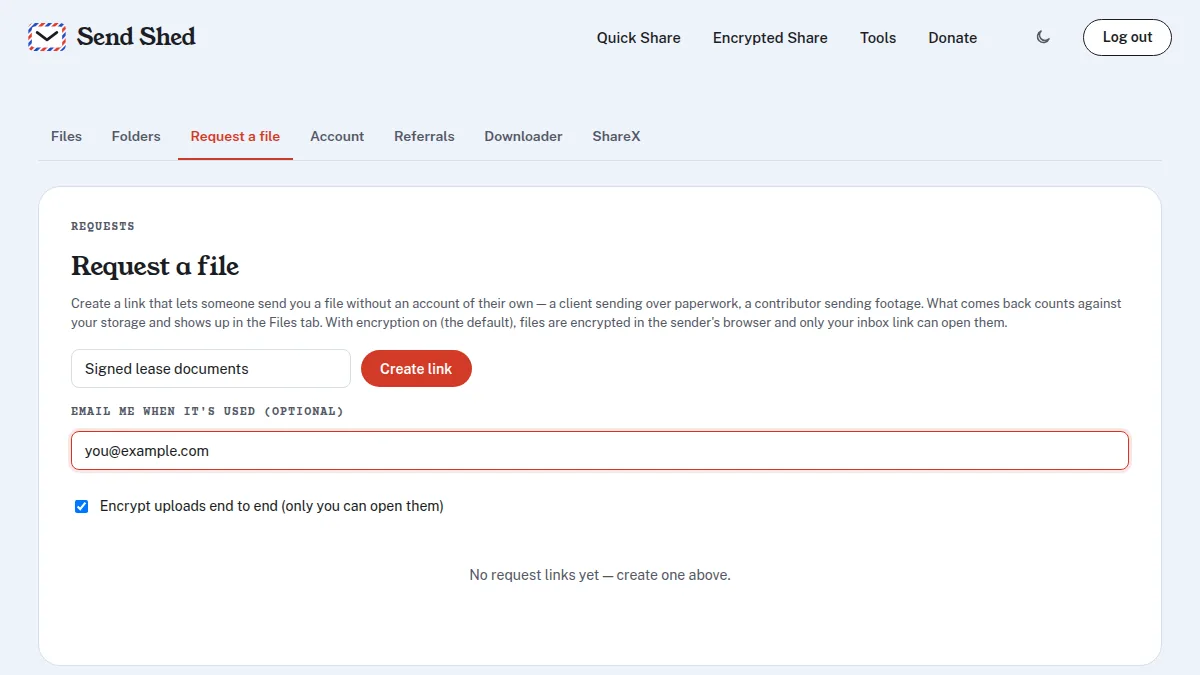
How to set one up
- Create a free account and confirm your email, then open your dashboard and go to Requests.
- Give the request a label, like "W-9 from Alex", so you know what each upload is for.
- Leave Encrypt uploads end to end ticked. Optionally add an email address to be told when something arrives.
- Press Create link. You get two links: the request link to send out, and your inbox link.
- Save the inbox link somewhere safe, like your password manager. It holds the only key that opens what people send. Send Shed doesn't have it and can't recover it. The browser you made it in remembers it too.
What the other person does
They open your request link, drop the file and press Send file. No account, no app. The page tells them the file is encrypted in their browser and only you can open it.
How the encryption works
When you create the request, your browser makes a key pair (P-256). The public half goes to Send Shed with the request; the private half stays in your inbox link and your browser. The sender's browser uses your public key to encrypt the file (ECDH, HKDF and AES-256-GCM) before uploading it. The server stores only the encrypted file, and only your private key can turn it back into the original.
Good to know
- Lose the inbox link and that browser, and the files can't be opened. That's the trade-off for nobody else being able to open them.
- Put the upload form on your own site: each request has an Embed option that gives you a small snippet for a contact or client page.
- Revoke a link from the dashboard at any time, and it stops taking uploads.
- Turning encryption off makes uploads plain files you can preview and download from the dashboard, like Quick Share. Keep it on for anything private.
How the encryption itself works: zero-knowledge encryption, explained.
Quick answers
Does the sender need an account?
No. They open your request link, choose the file and press Send file.
Can Send Shed see the files people send me?
Not with encryption on. Files are encrypted in the sender's browser to a key that only exists in your inbox link and your browser.
What happens if I lose my inbox link?
If you also lose the browser that made the request, the files cannot be opened. Save the inbox link in a password manager.
Can I put the upload form on my website?
Yes. Each request link has an Embed option that gives you a small snippet to paste into a page.
Make a request link
Free account, then Dashboard → Requests.
Create a free account Send a file encrypted instead