How to password-protect a file before you send it
A share link is only as private as everywhere it ends up: forwarded in a group chat, left open in a browser tab, or sent to the wrong contact. A password means having the link or the file isn't enough on its own. Here are the ways to add one, and which of them actually hold up.
Option 1: an encrypted zip or 7z file
The classic approach, with one trap. Older zip encryption ("ZipCrypto") is considered weak by modern standards,
and it's what the built-in zip -e command on macOS and Linux uses. AES-256 encryption is strong, but you
have to choose it.
- Install 7-Zip (free, Windows) and right-click the file, then 7-Zip > Add to archive.
- Choose 7z or zip format, set Encryption method to AES-256, and enter a password.
- For 7z, tick Encrypt file names too, so the file list stays hidden.
Source: Mailfence: how to encrypt a zip file (checked 18 October 2026).
Option 2: a password on the document itself
- PDF on a Mac: open it in Preview, choose File > Export, tick Encrypt and set a password.
- Word, Excel, PowerPoint: File > Info > Protect Document > Encrypt with Password (Windows), or Review > Protect (Mac).
Good for a single document the recipient will open in the same app. It doesn't help with photos, videos or a folder of mixed files.
Option 3: a password on the link
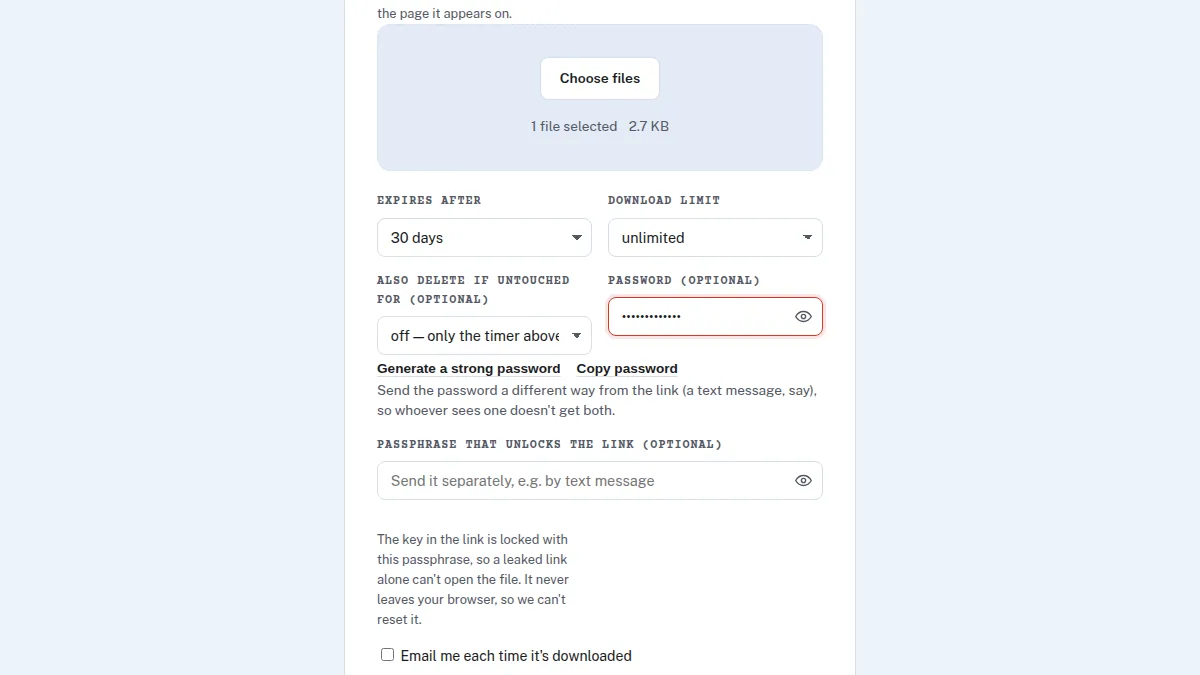
Send Shed's Quick Share and Encrypted Share let you add a password when you upload. Until it's entered, the download page shows nothing: no file name, no size, nothing to download. There's nothing to install, and it works for any file type.
On Quick Share the server checks the password, so it keeps out anyone who finds the link but doesn't protect the file from the service itself. For that, use option 4.
Option 4: encrypted in your browser, with a passphrase
Encrypted Share encrypts the file and its name on your device before upload, so Send Shed never has the key. Add a passphrase and the key in the link is locked with it too, so a leaked link alone opens nothing. This is the strongest option here, and the easiest one to send.
Which to choose
| Method | Strength | Best for |
|---|---|---|
zip with ZipCrypto (zip -e) | Weak | Avoid for anything sensitive |
| 7-Zip with AES-256 | Strong | Files you also need to store or email |
| PDF or Office password | Good (modern versions) | One document, same app on both ends |
| Password on a Quick Share link | Keeps out link-finders | Everyday files, no install |
| Encrypted Share with a passphrase | Strongest | Contracts, IDs, tax forms |
Send the password separately
Whichever you pick, send the password a different way from the file: the link by email, the password by text or a call. A password in the same message as the file protects nothing. For the password itself, a secret note that reads once is ideal.
How the encryption itself works: zero-knowledge encryption, explained.
Quick answers
Is a password-protected zip file secure?
Only with AES-256 encryption, for example from 7-Zip. The older ZipCrypto method, used by the built-in zip -e command on macOS and Linux, is considered weak.
How do I send the password safely?
Use a different channel from the file, such as a text or a call, or a secret note that deletes itself once read.
What's the most secure way to send a password-protected file?
Encrypt it in your browser before upload, with the key locked by a passphrase, as Send Shed's Encrypted Share does.
Add a password in seconds
Free on both Quick Share and Encrypted Share. Nothing to zip first.
Quick Share a file Encrypt it instead